01
2nd Flight Golf builds a simulator stream around one OBS scene
The walkthrough builds separate viewing layouts, brings in Discord and puts a combined chat feed within reach.
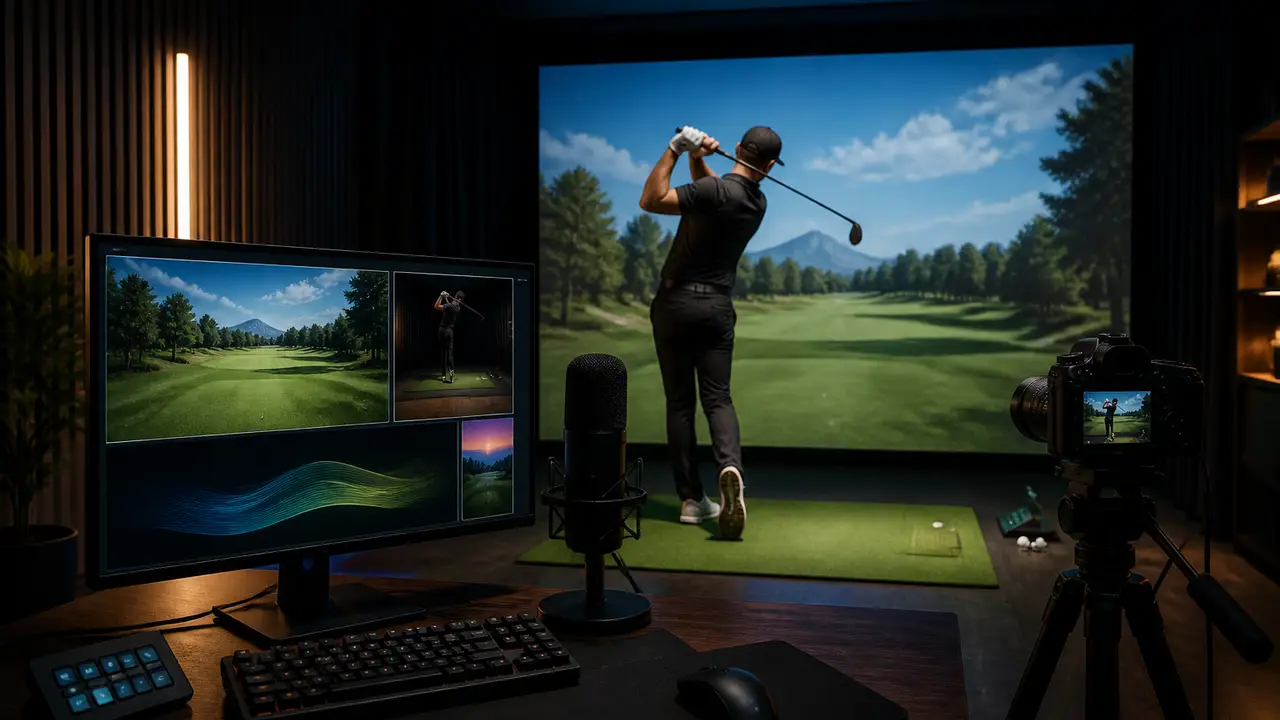
2nd Flight Golf starts its new streaming tutorial with the picture most simulator golfers need: the course, the person hitting the shot and a working microphone. From there, the October 18 walkthrough builds separate YouTube and TikTok layouts, makes room for a playing partner and puts chat where the golfer can see it.
The first OBS Studio scene is straightforward. The creator selects GSPro's window as a game capture, fits it to the canvas and adds a camera and microphone. Layer order determines whether the camera stays visible or disappears behind the full-size course image.
TikTok gets a different composition. The creator wants a larger view of the golfer above the gameplay, rather than the small camera picture used in his other layout. He builds a scene for that arrangement and selects it as the output of OBS's virtual camera. The plan is to send that camera input to TikTok Studio while using OBS for YouTube.
OBS's official guide explains the options behind that choice. The virtual camera can follow the program view, the preview, one scene or a single source. Choosing a particular scene keeps its composition available to another application even while the operator works elsewhere in OBS. Sending the preview instead can expose changes being made in Studio Mode.
For a round with someone else, the tutorial adds Discord. The creator demonstrates where a partner's video would go by capturing and cropping a Discord window; the camera space is empty in his example. Application audio capture supplies the separate route for that person's voice. Copying references to those sources into another scene keeps them available when the layout changes.
Chat is the final addition. The creator takes a Social Stream Ninja overlay link, adds it as an OBS browser source and pushes sample messages through it. He then copies a reference into his other scenes. The overlay can sit in the broadcast layout or on another display, including a simulator's floor projection.
Social Stream Ninja's current documentation describes collecting YouTube, TikTok and other platform messages into one dashboard, with customizable overlays for displaying them. That gives the golfer a way to follow conversation while playing instead of repeatedly checking separate chat windows.
Account access needs attention before a planned stream. YouTube's current help requires channel verification and no live-streaming restrictions during the preceding 90 days. Its encoder guidance covers gameplay, overlays and camera or microphone hardware.
The creator is unsure of the exact TikTok threshold for unlocking his virtual-camera setup, so viewers will need to check their own account's access. His bitrate and encoder choices are examples from his machine, too. At the YouTube connection step, he explains the sign-in flow but says he has not signed in for the demonstration.
02
03
04